Case study · Internal application
Internal application for a medical testing laboratory
On a short timeline, we built an internal web application for a medical testing laboratory. It tracks every test from sample registration to the issued report and the reporting exports.
A medical testing laboratory needed one application covering the full path of a test: registration, result, validation, report and reporting. We built it on a short timeline for RT-PCR tests, rapid tests and combined tests. Each team member can access only the modules their work requires.
How a test moves through the application
- 1
Collection and label
Staff: Fills in the patient form.
Application: Order number, ID number check, pre-filled details for returning patients, barcode or QR label.
- 2
Result
Staff: Enters the result or uploads the file.
Application: Matches results to samples and flags rows that need checking.
- 3
Validation
Staff: Confirms the result.
Application: Records who validated it and when.
- 4
Report and reporting
Staff: Chooses the sample, batch or period.
Application: Report in Romanian or English with a QR code, reporting exports.
1. Registration and sample label
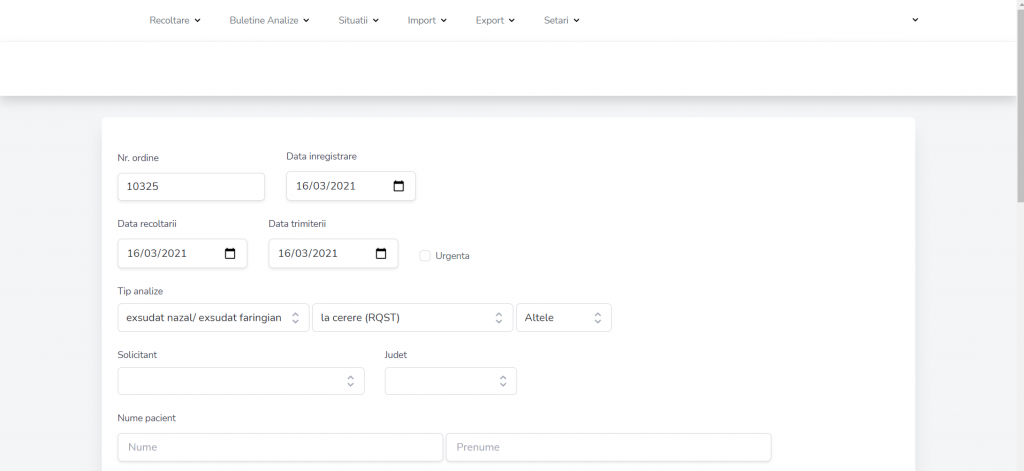
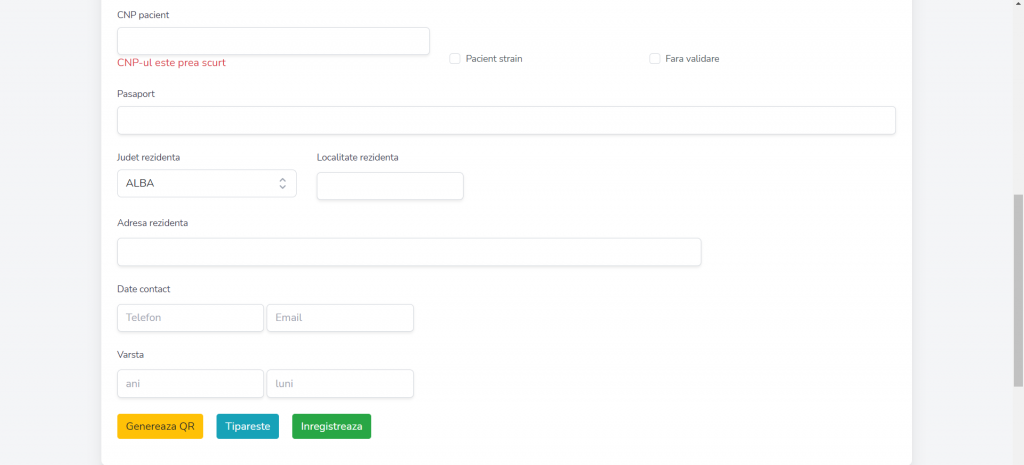
At collection, a staff member selects the test type and enters the patient details. The application assigns the next order number and fills in the date and time. It also checks the personal identification number and calculates the patient's age. When a patient returns for a new test, the application recognizes them by their ID number. With a single click, it pre-fills the contact details and address from the previous test, so nothing has to be typed again. The sample label prints straight from the form, with a barcode or QR code generated by the application.
2. The result
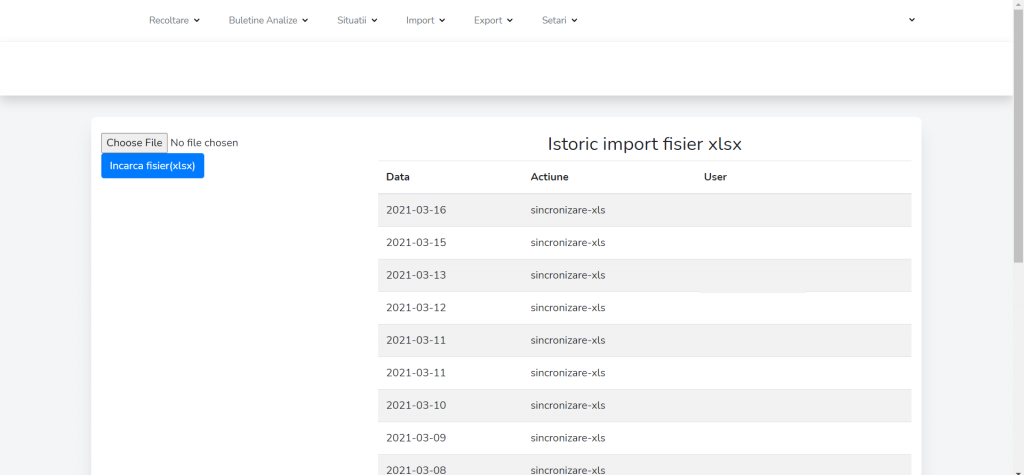
Results can be entered manually or imported in batches from a CSV or XLSX file. During import, the application matches each result to the right sample by its order number. It then shows a summary of the processed rows and of the rows that need checking.
3. Validation
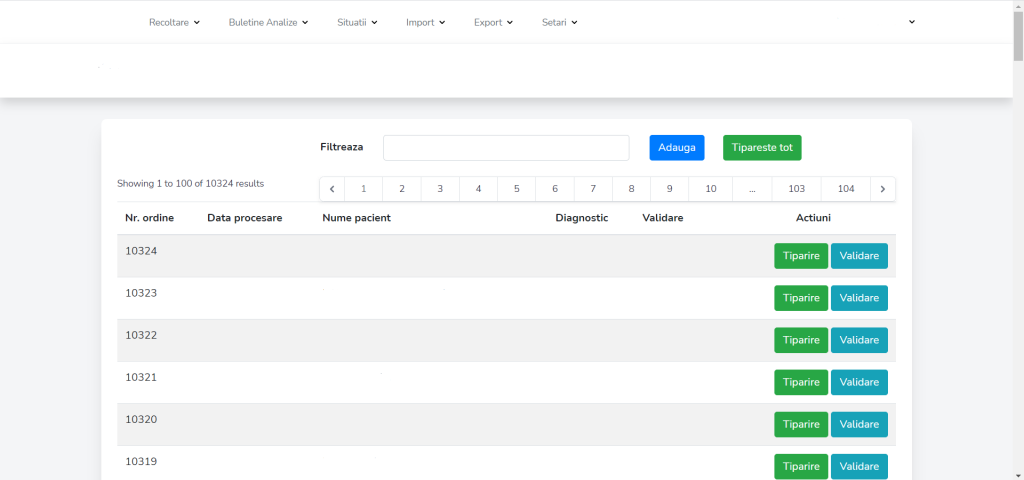
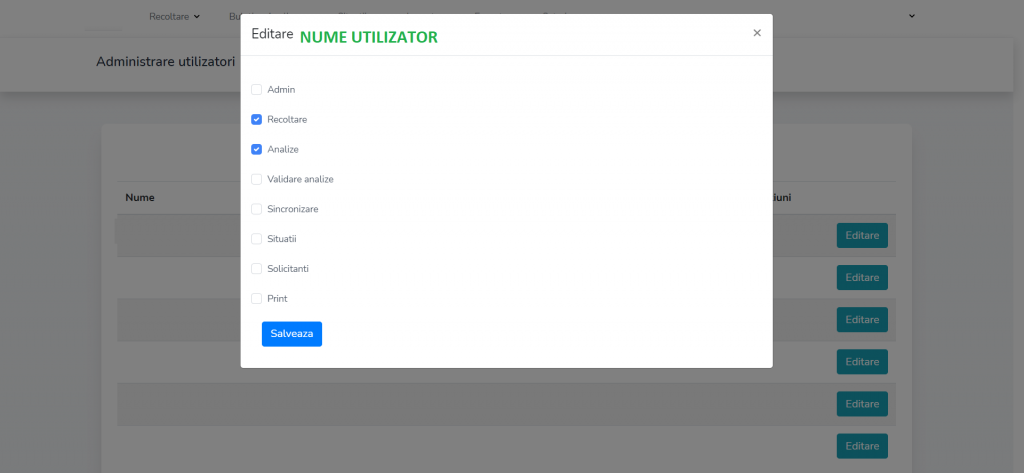
A user with validation rights confirms the result. The application records who validated it and when. For every sample, staff can also see who registered it and who processed the result.
4. Report and reporting
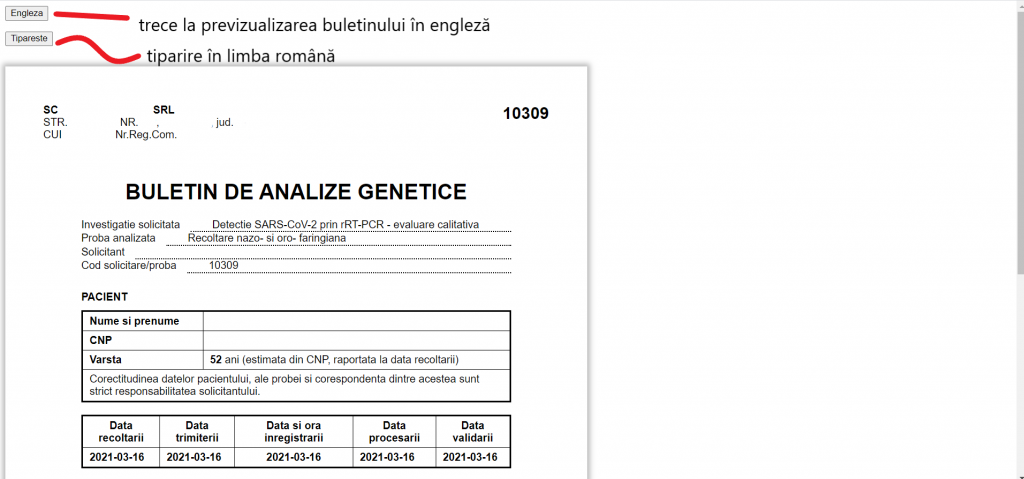
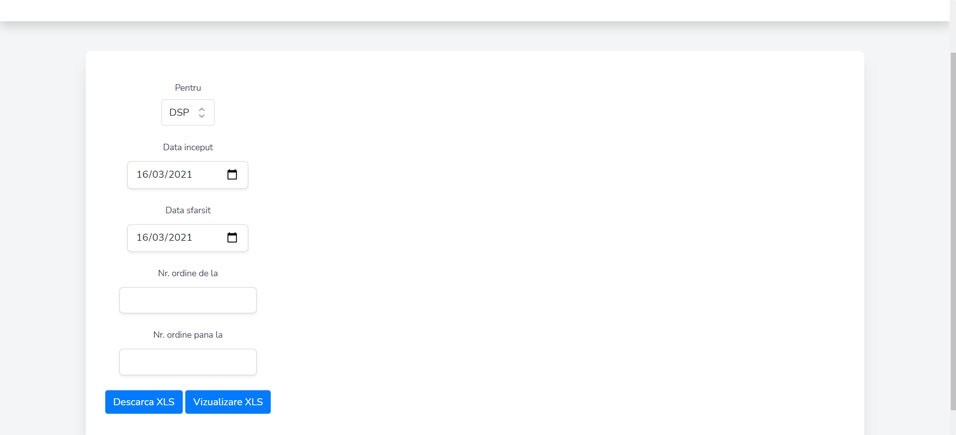
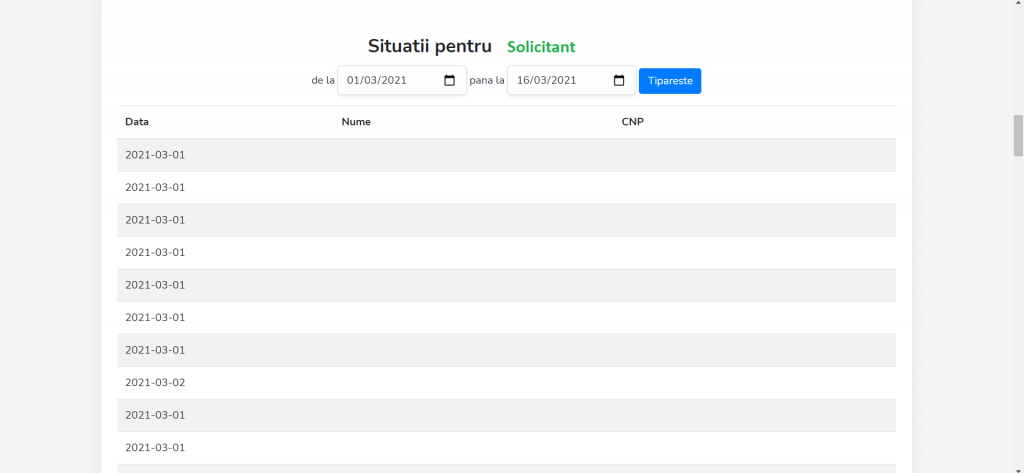
Reports print for a single sample or for a batch, in Romanian or English. Each report carries a QR code that opens the document through a unique link. For reporting, staff choose the period and the application generates the exports, including a dedicated export for the public health authority. The same application produces summaries per requesting organization and a list of retested patients.
What the project delivered
One application covers the full path of a test, from sample registration to the issued report, with batch import of results and reporting exports where needed. Data is entered once and reused on the label, in the report and in the exports. The application also keeps a history of imports and exports.
Staff remain responsible for sample collection, entering or uploading results, validation and choosing the reporting period. The application handles numbering, checks, matching results to samples and generating the documents.
As the laboratory's volume grew, a need emerged to connect the application directly to the medical instruments. That was a later phase, outside the delivered project.
Have an internal workflow you want to automate?
Tell us the steps a request, an order or a case file goes through in your company today. We will propose an application that takes over the repetitive work and leaves the important decisions to your team.
Describe your workflow